

You will find the operation of Cashbook for Sage 300 (Accpac) simple and practical. More the way you think.
Features like multiple years of history, online cheque and receipt printing, direct bank reconciliation, optional fields, full Tax Services integration, drill down from other Sage 300 ERP (Accpac) modules, unlimited report writing, customization by user and seamless integration to other Sage 300 (Accpac) modules, increases the power of Cashbook making it a product that you will never outgrow.
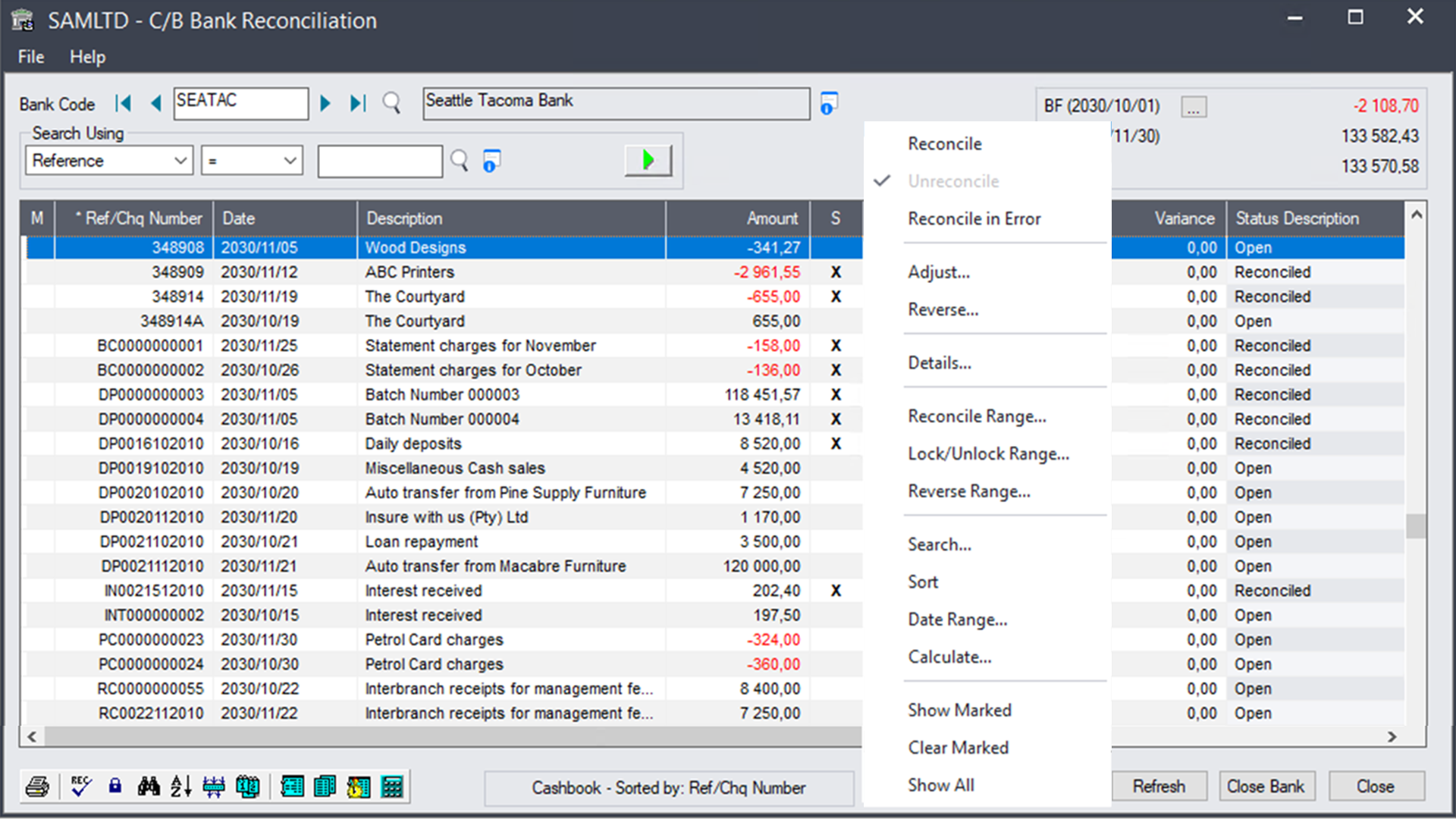
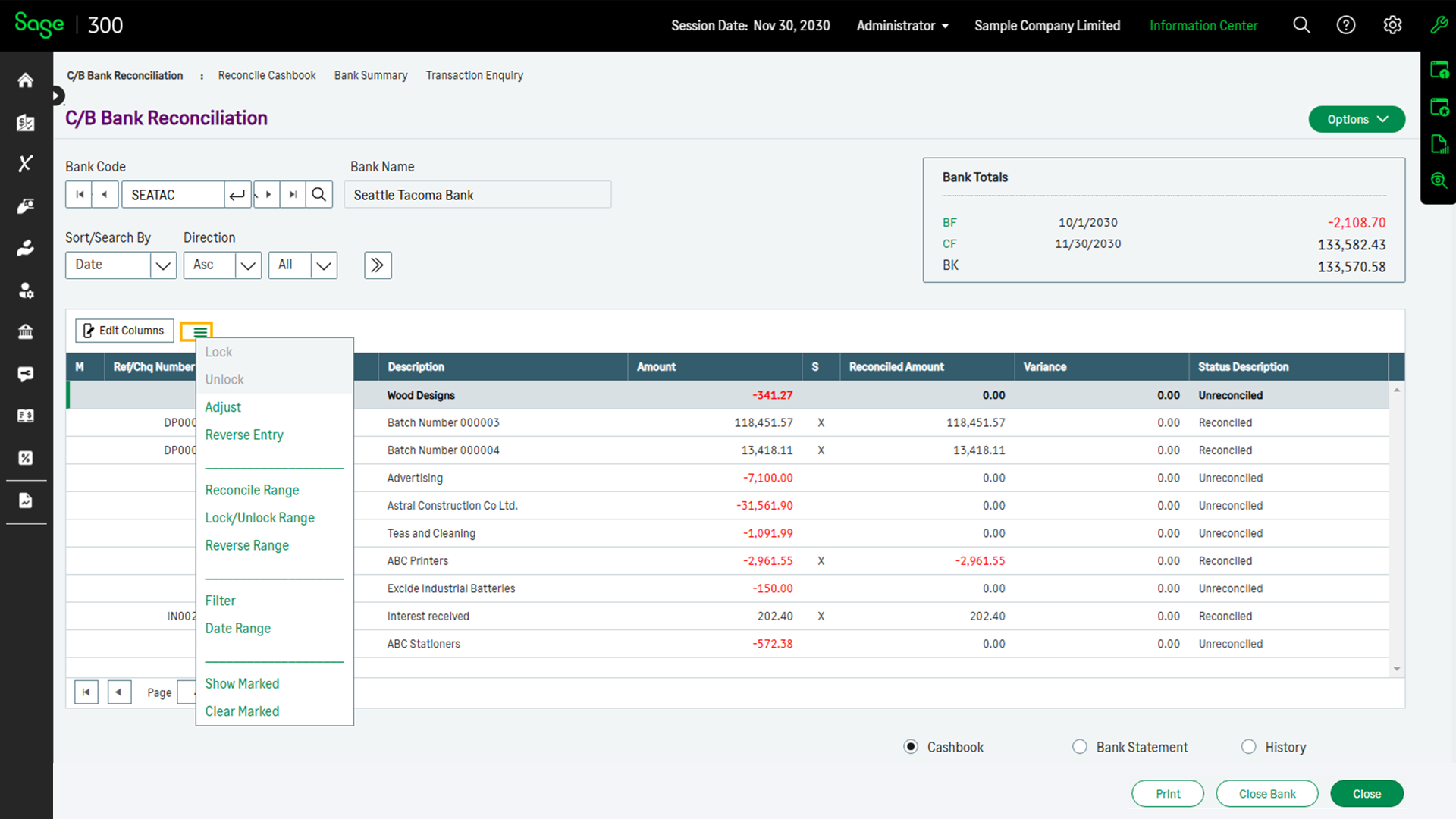
Powerful lookup tables and search functions let you look up entries in a flash. Finding the history of a transaction is quick and easy. Reconciling your bank statement is the way it should be, visual and flexible. Cashbook uses one of the most popular report writers in the world, Crystal Reports.
Crystal adds many extra features to let you shape Cashbook the way you like it. All Cashbook reports can be modified using Crystal. Draw graphs in most shapes and sizes, do cashflow reporting with ease using Crystal's Report Expert and link Cashbook data with Sage 300 (Accpac).
You will definitely be able to add that final edge that you require from an accounting system.
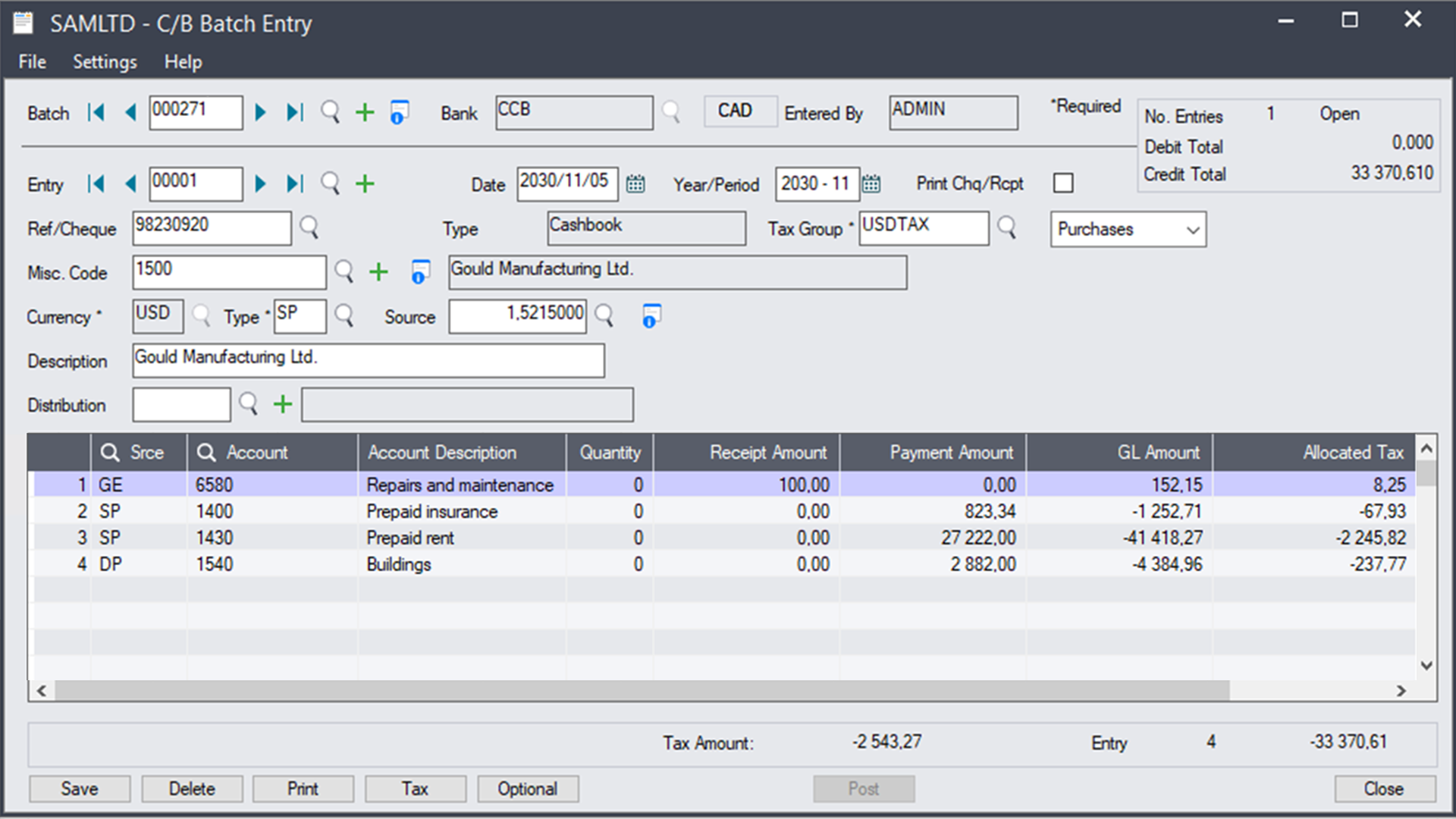
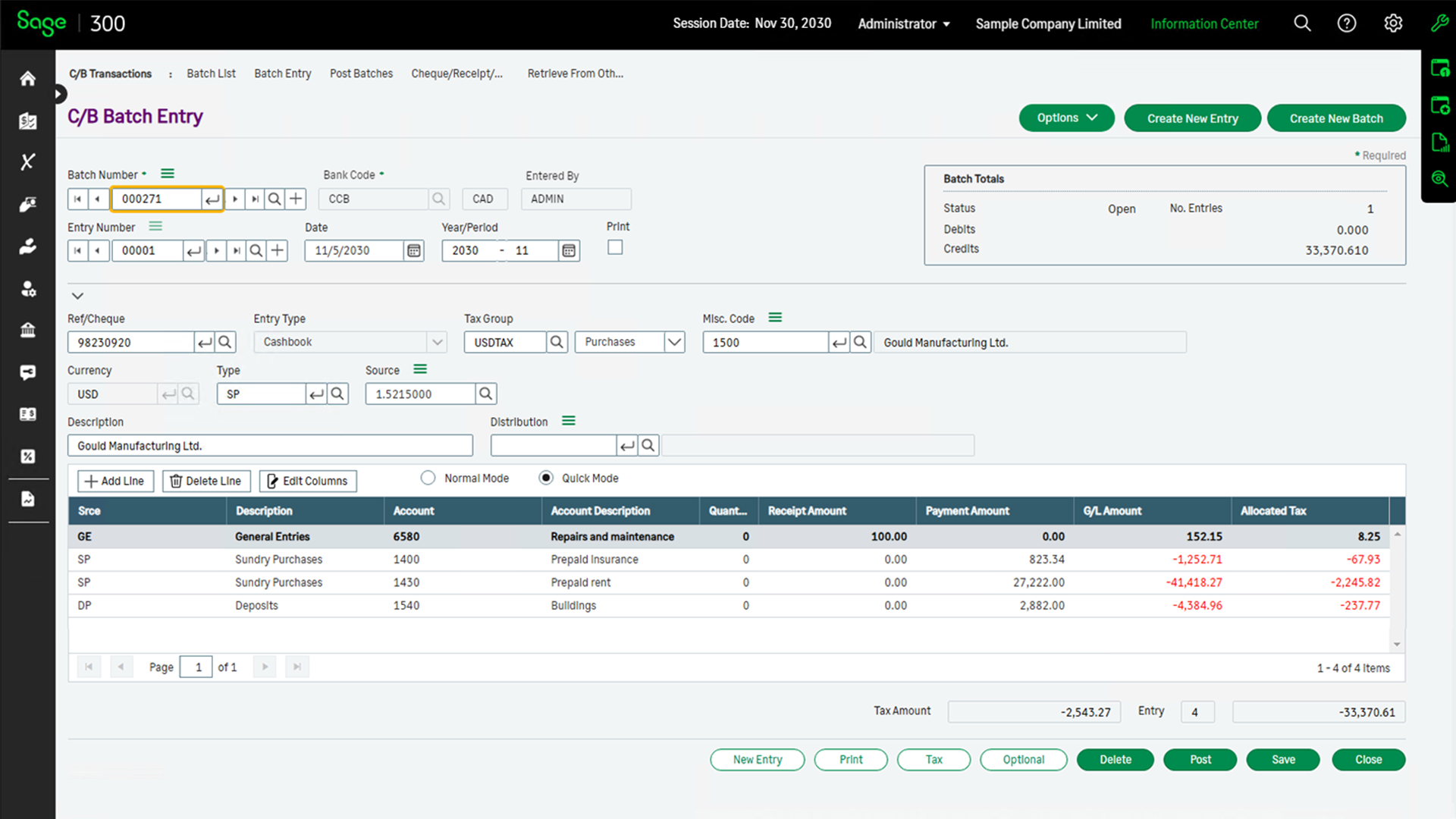
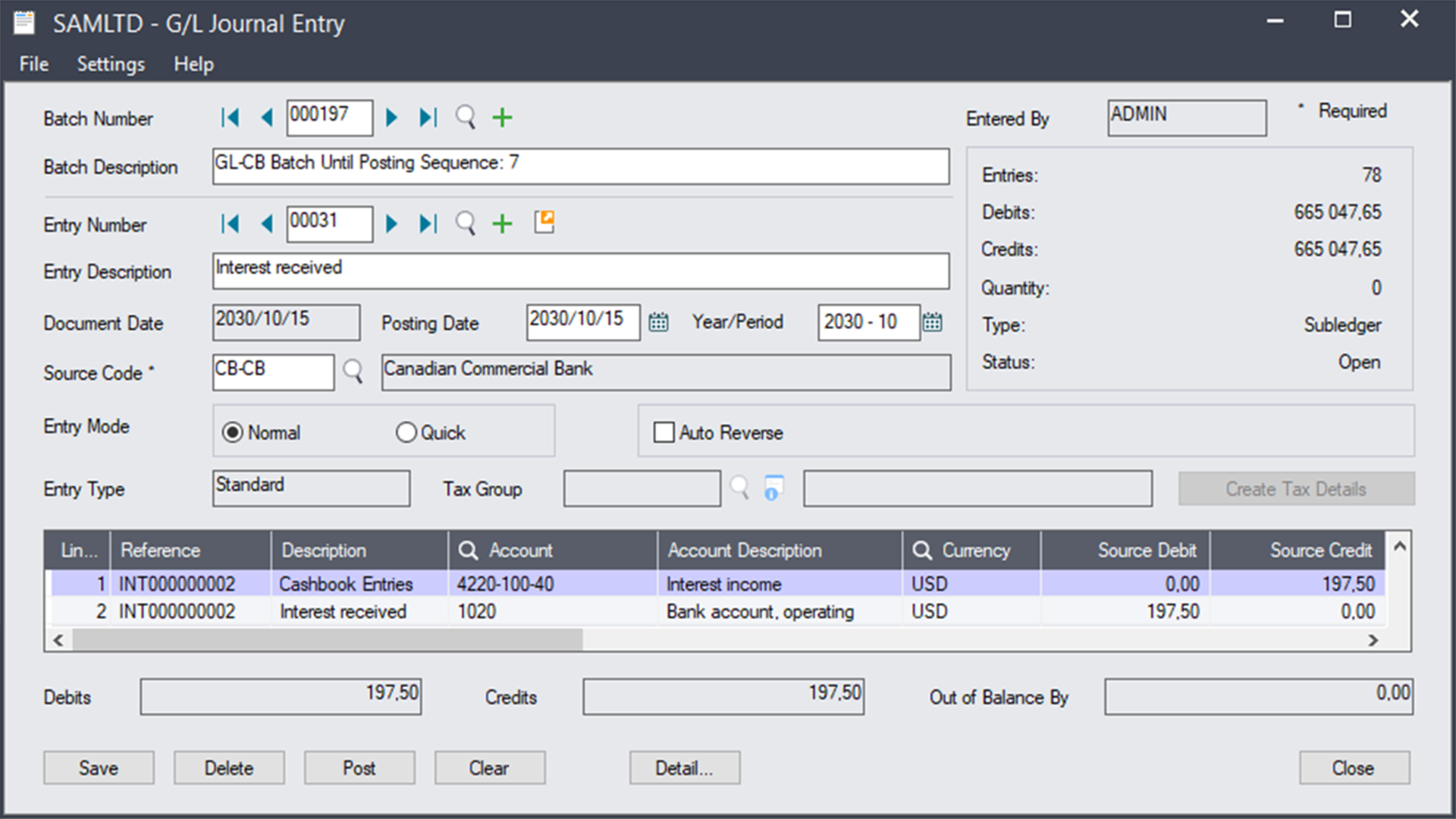
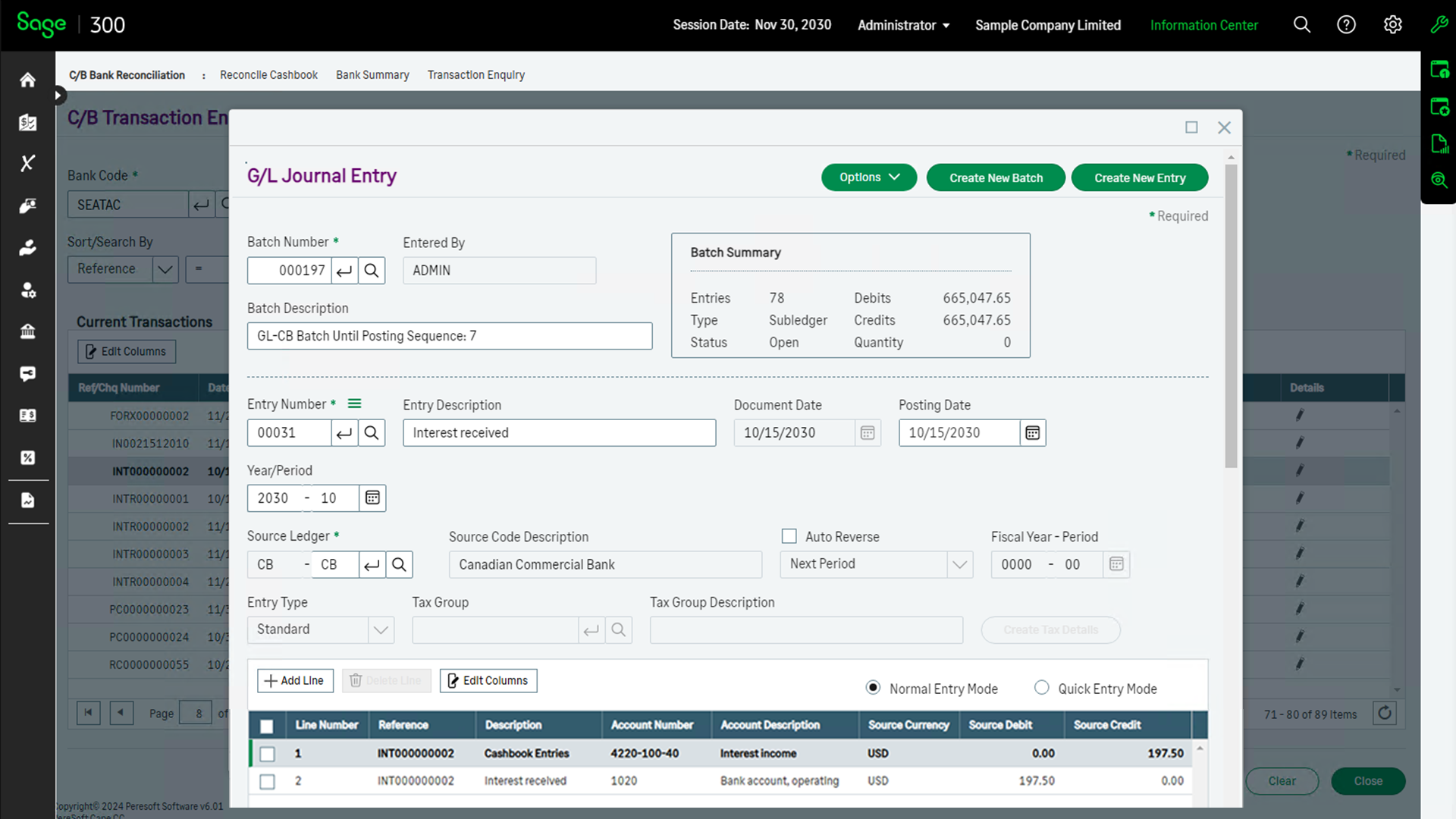
Entries need only to be entered once and Cashbook will automatically create the necessary entries for Sage 300 (Accpac) General Ledger, Accounts Receivable and Accounts Payable. One audit trail on all cash movement for easier analysis.
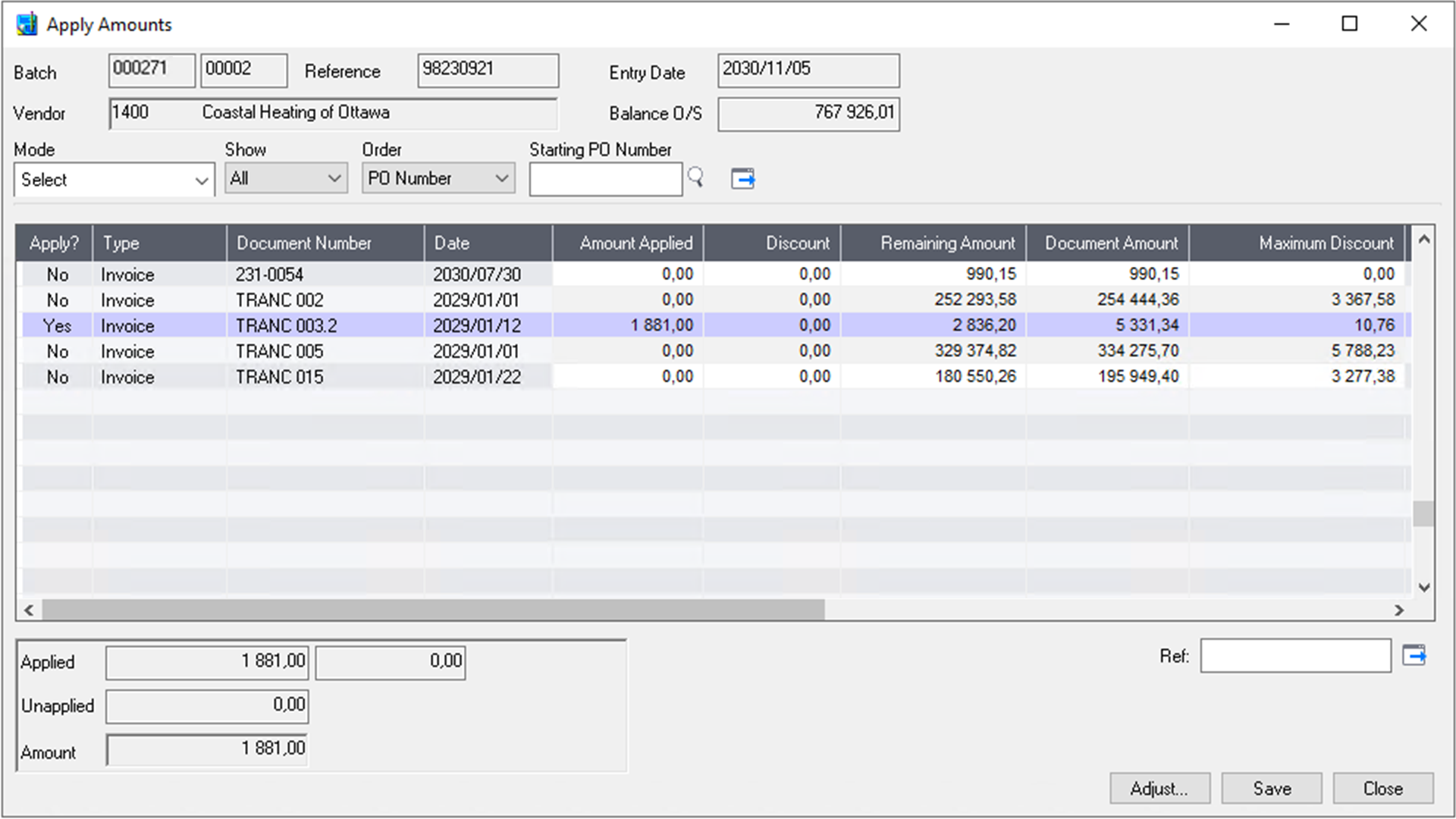
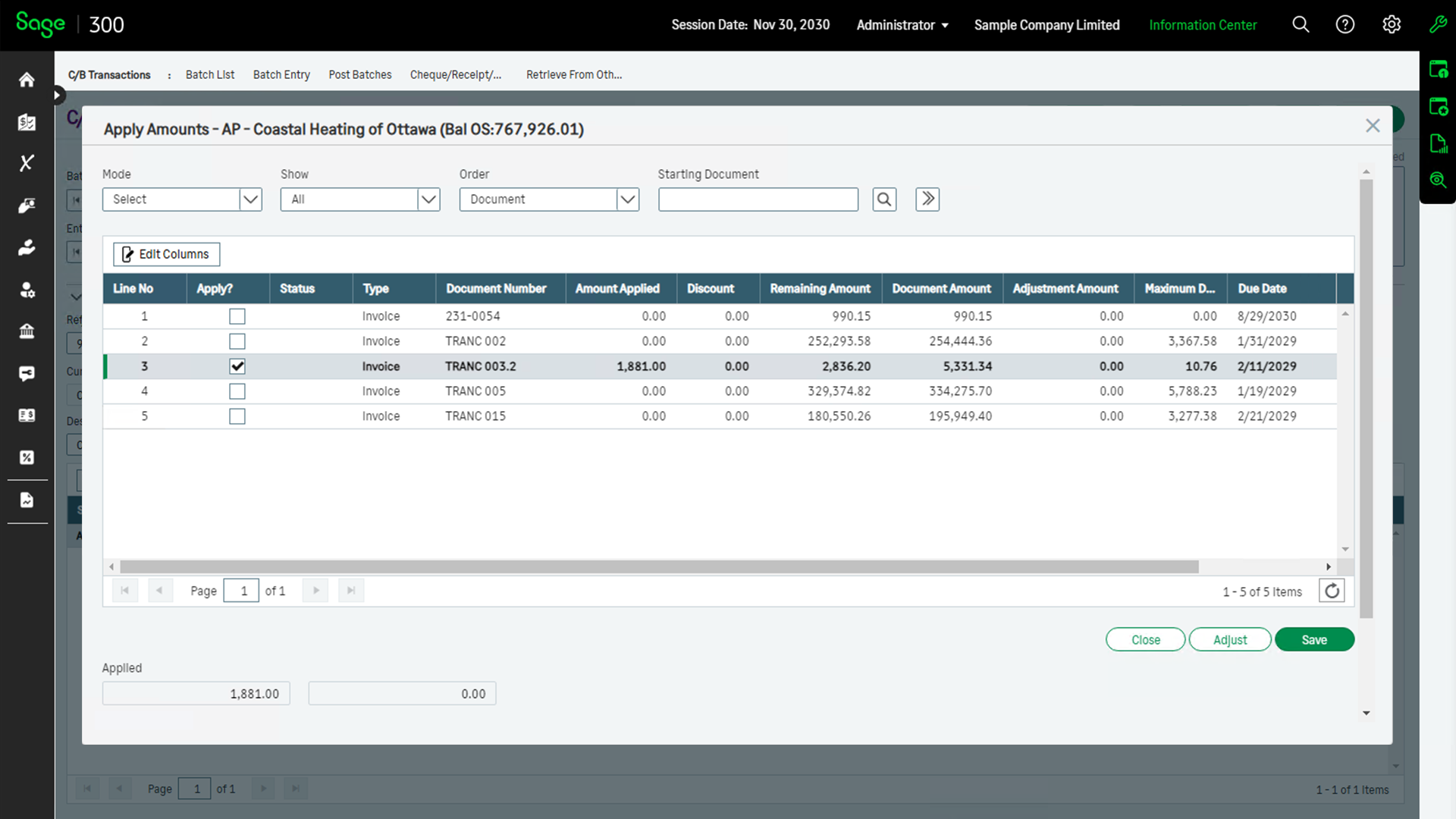
Directly against invoices entered in Sage 300 (Accpac) Accounts Receivable and Accounts Payable. The outstanding documents can be sorted by different sequences.
Checks and deposits for direct reconciliation. With the click of a mouse or a single keyboard stroke the transaction is reconciled instantly and the bank balance updated immediately.
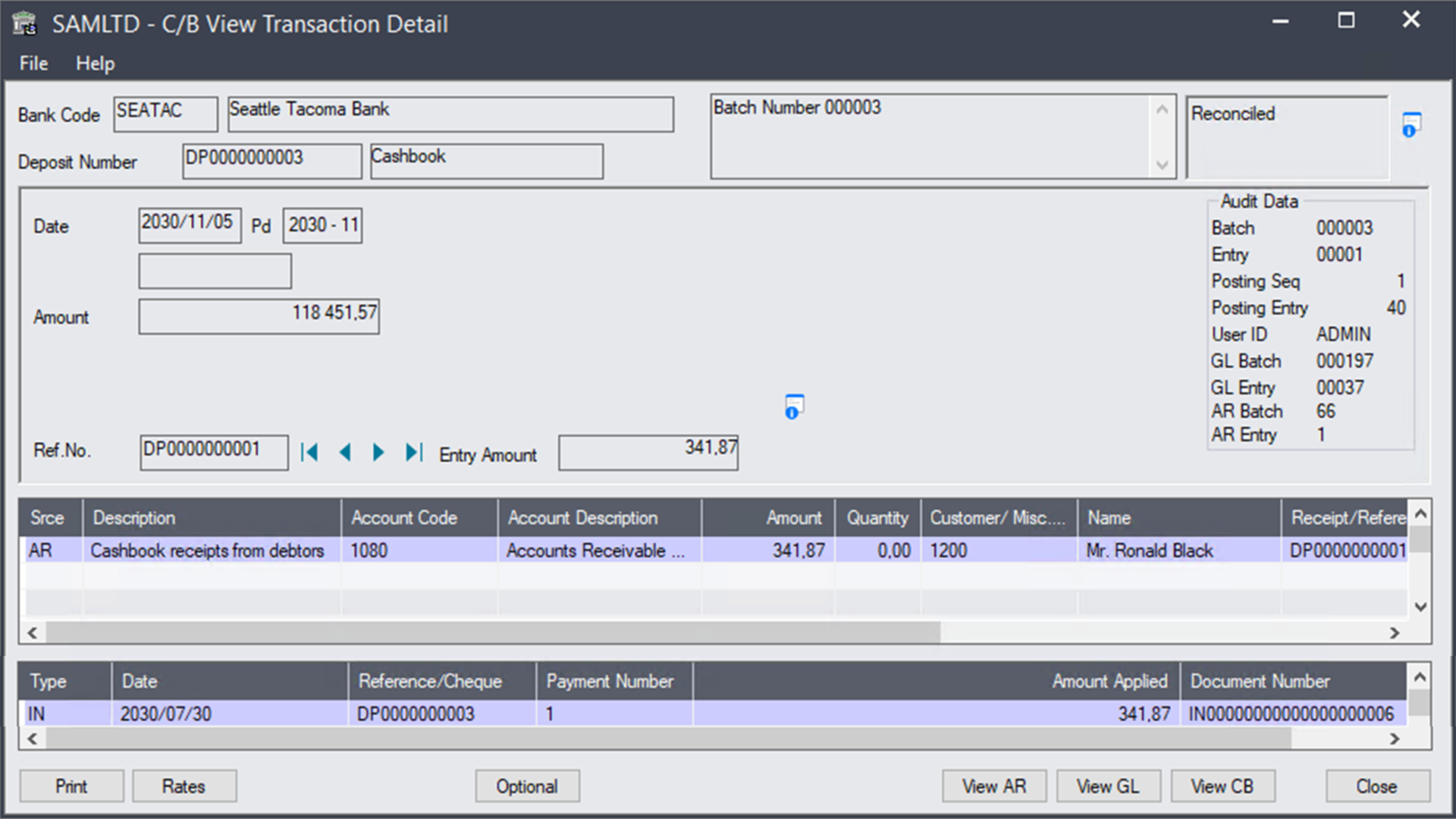
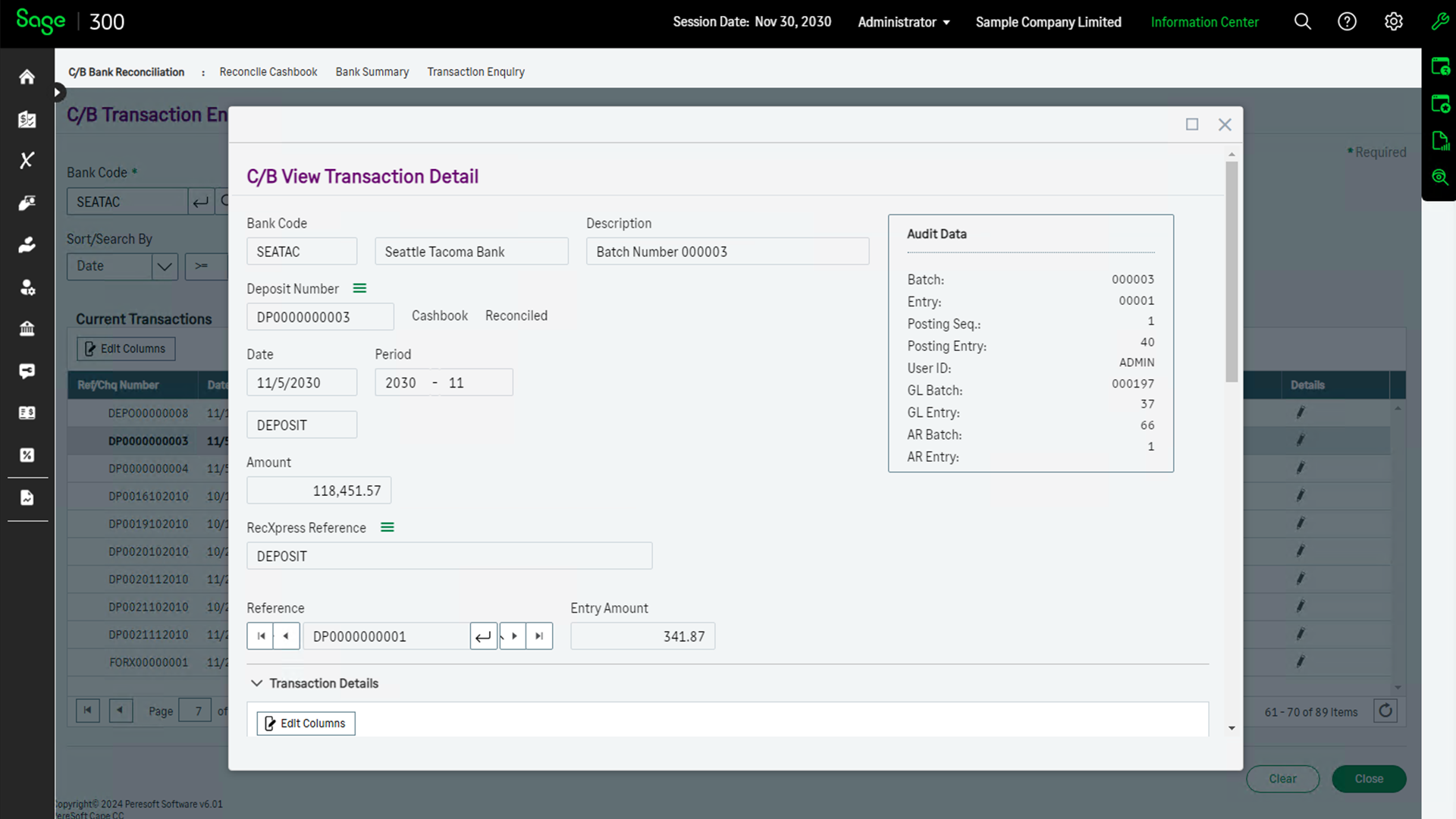
To enquire on transaction details. Display all details pertaining to a transaction by clicking on the transaction in your bank reconciliation.
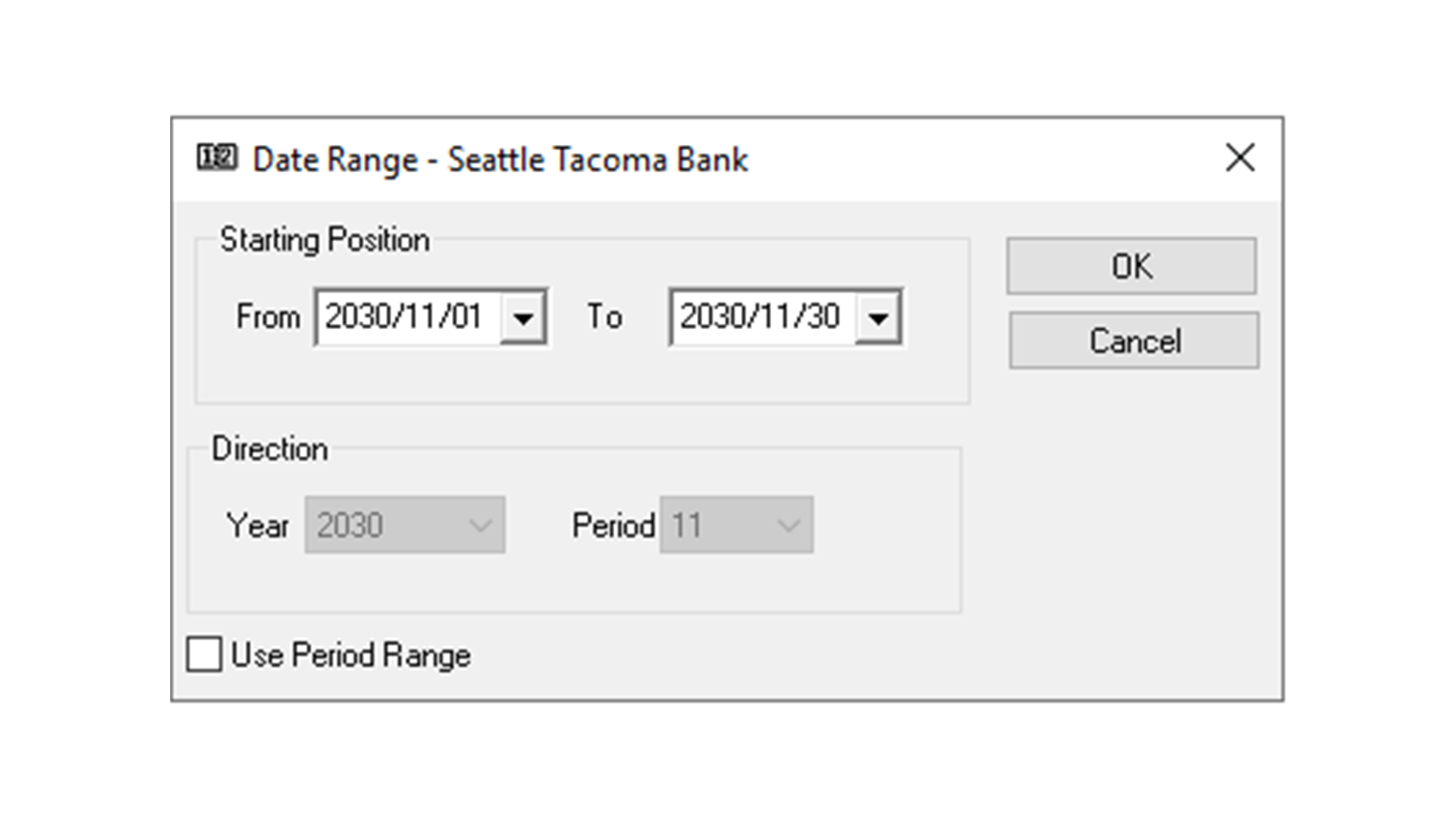
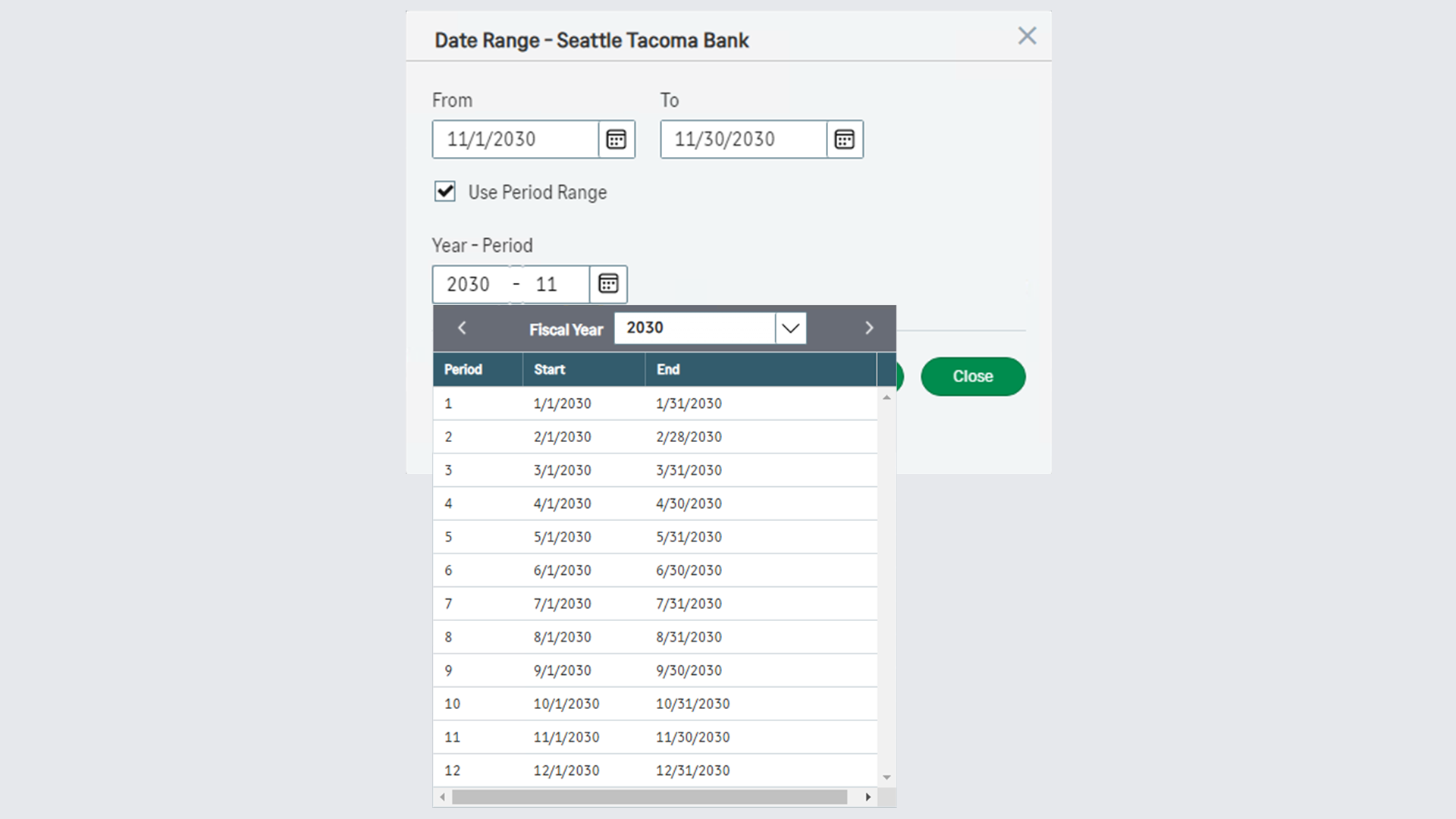
Your Cashbook is date driven, giving you running balances for your Cashbook for any period or date.
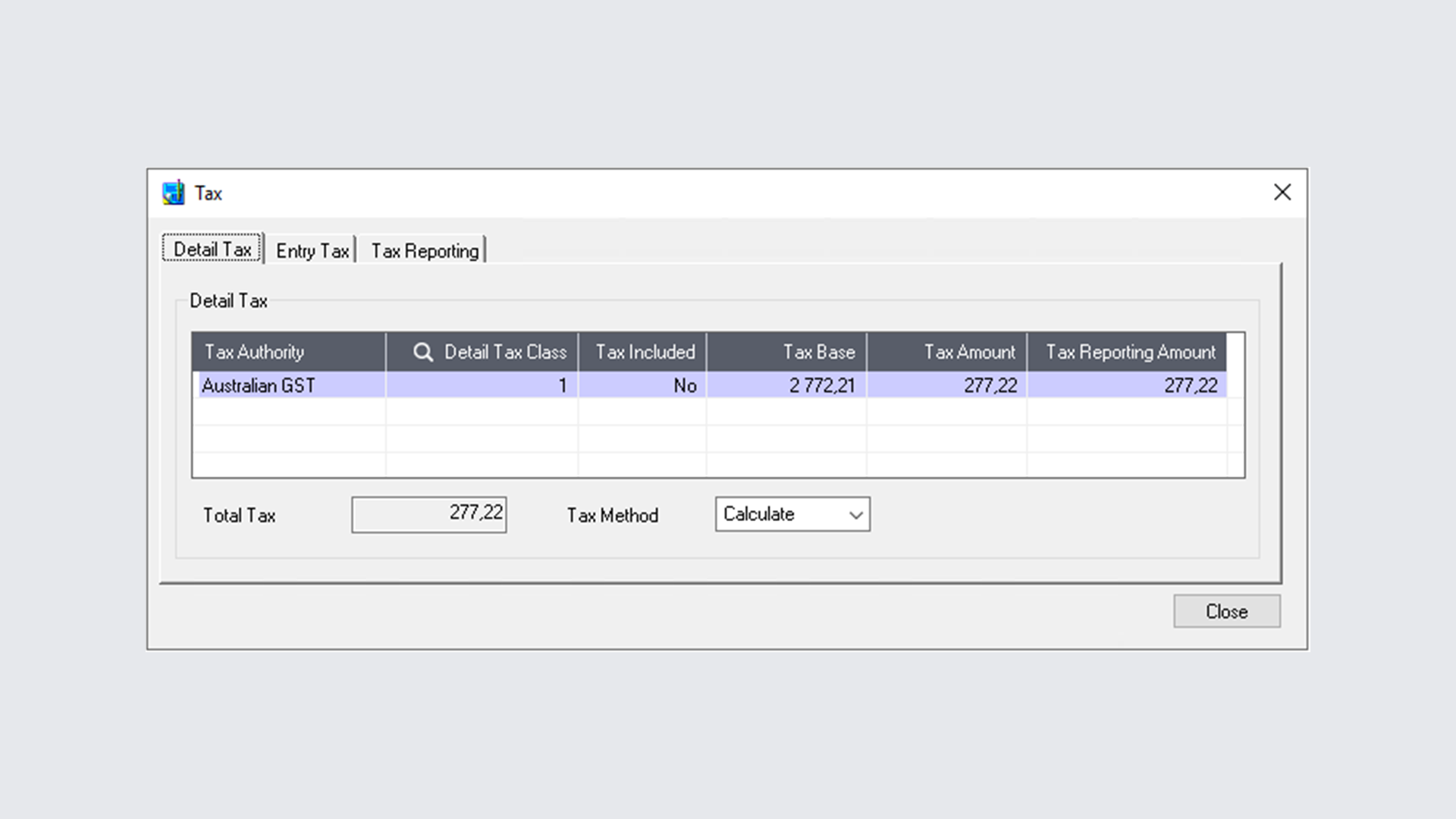
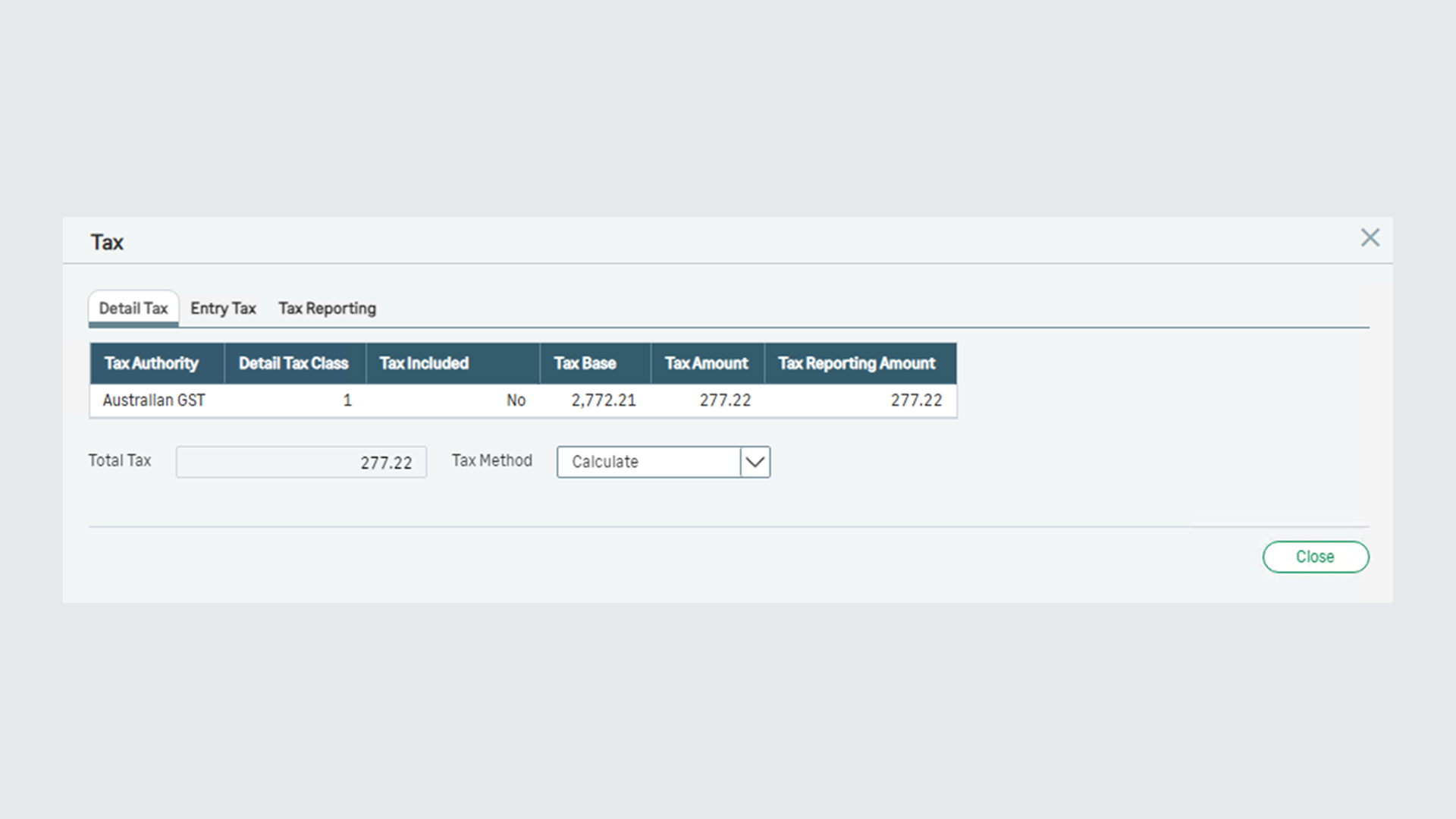
Complete Sage 300 (Accpac) Tax Services integration with the ability to do more than one tax calculation per entry detail line.
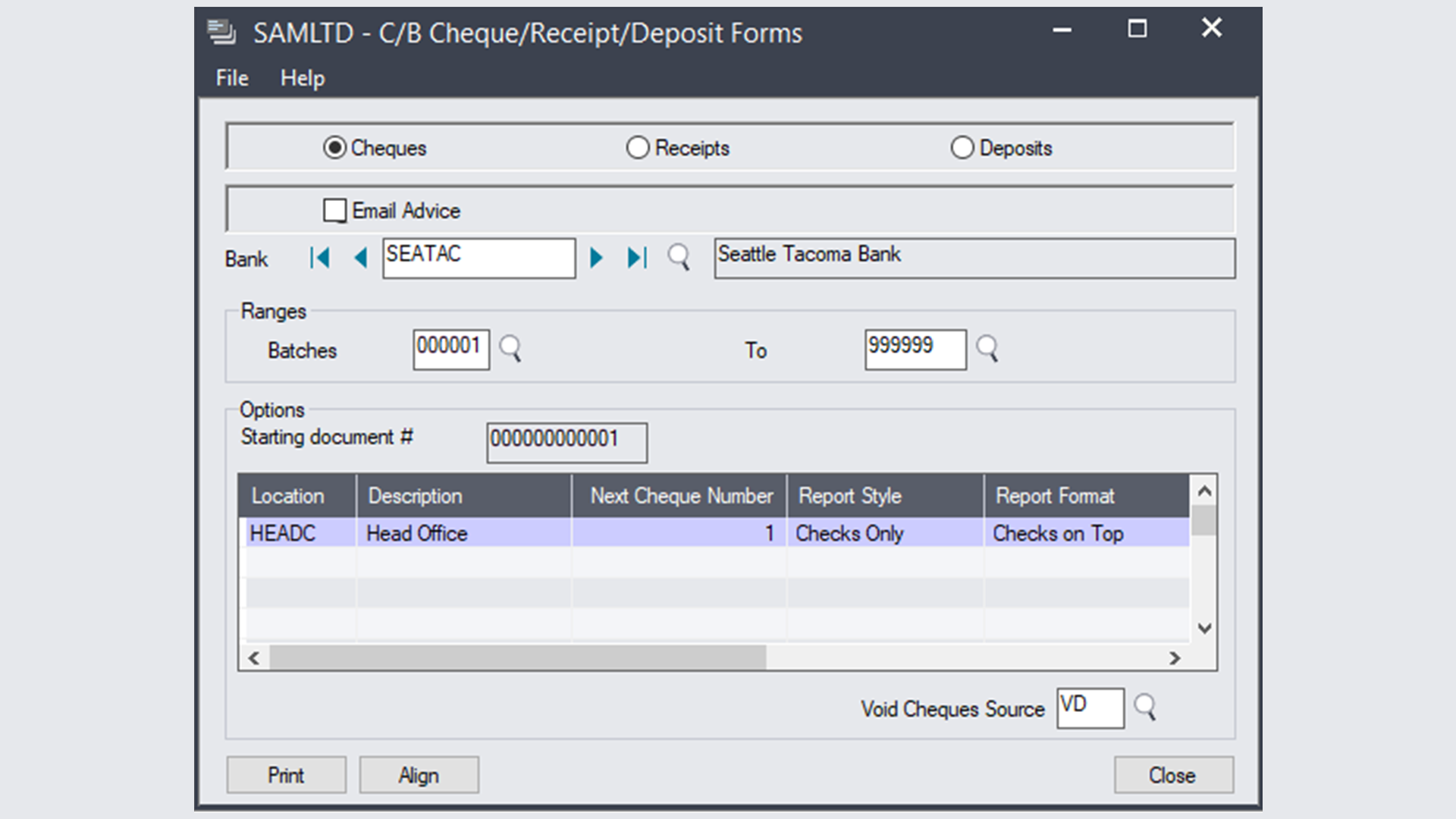
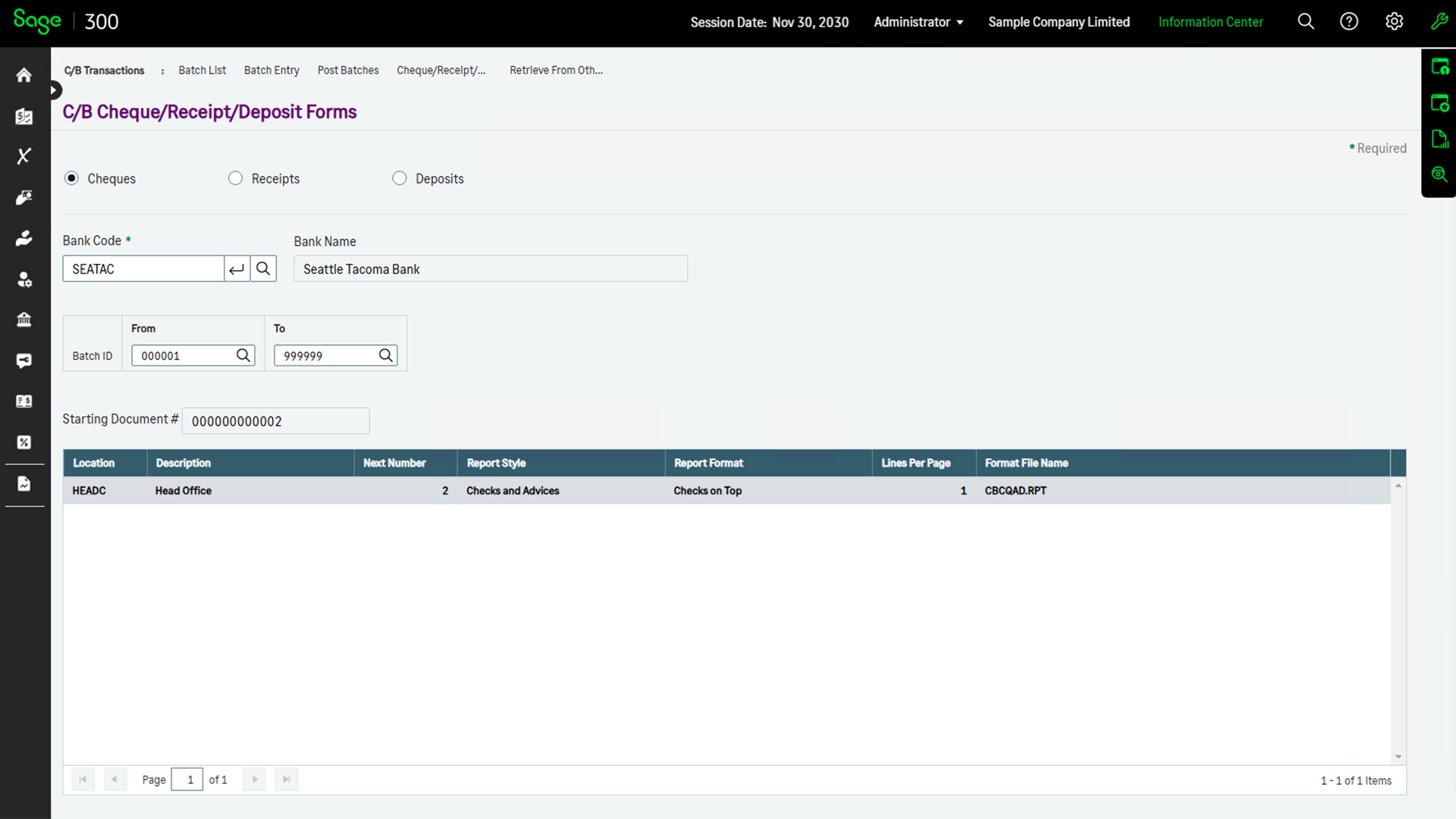
On-line cheques and advices as well as receipts and deposit slips are produced using the batch entry window. After each entry is saved you have the option to print the information immediately. Multiple cheques/advices, receipts and deposit slips can be printed in one operation. Cashbook's automatic numbering facility allows you to have up to 20 different numbering sequences for your cheques and receipts.
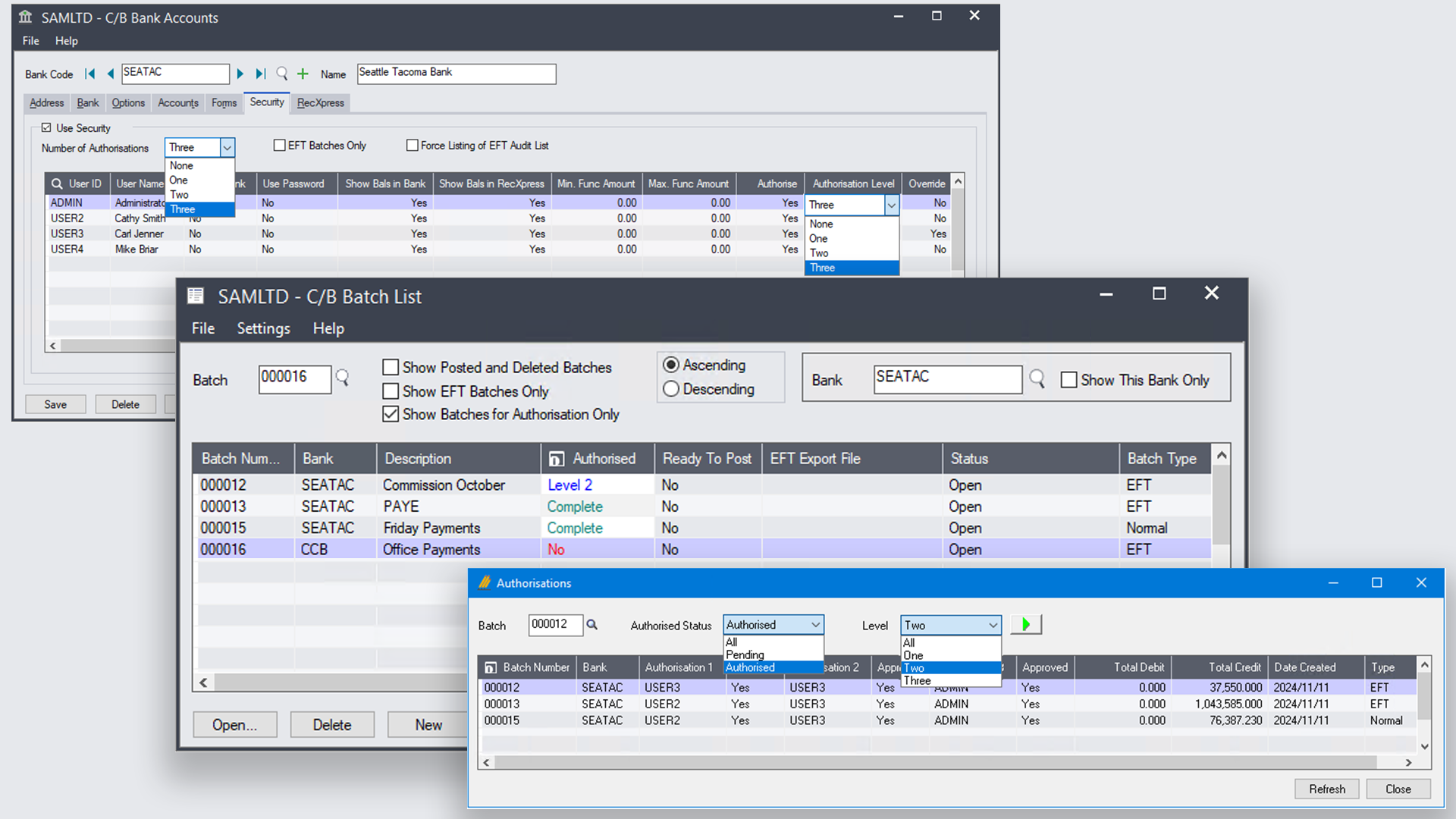
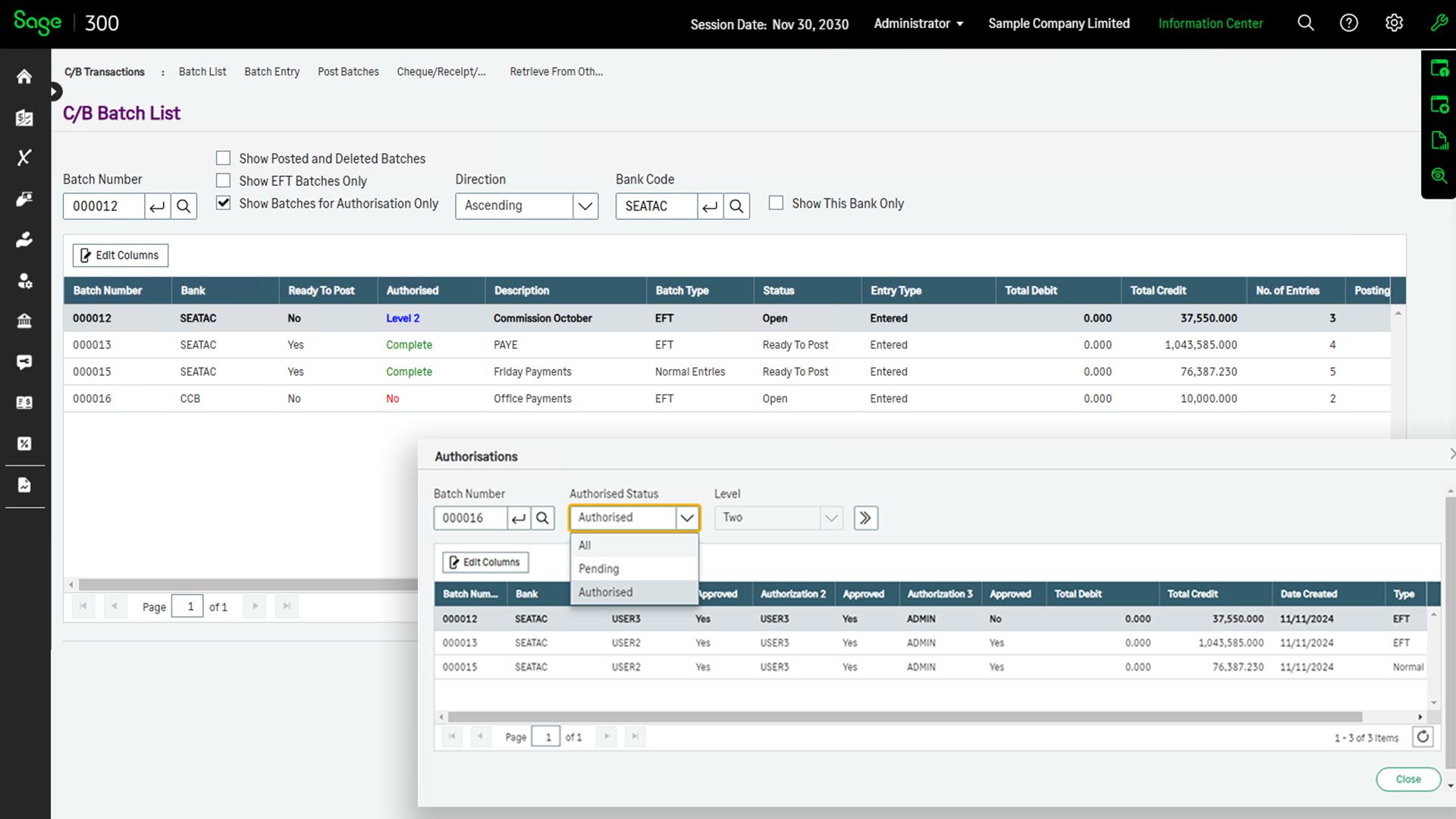
Enhance security and control with up to three levels of authorisation for C/B Bank Account access. This feature ensures that payment batches, including EFT batches, are reviewed and approved according to your organisation's workflow.
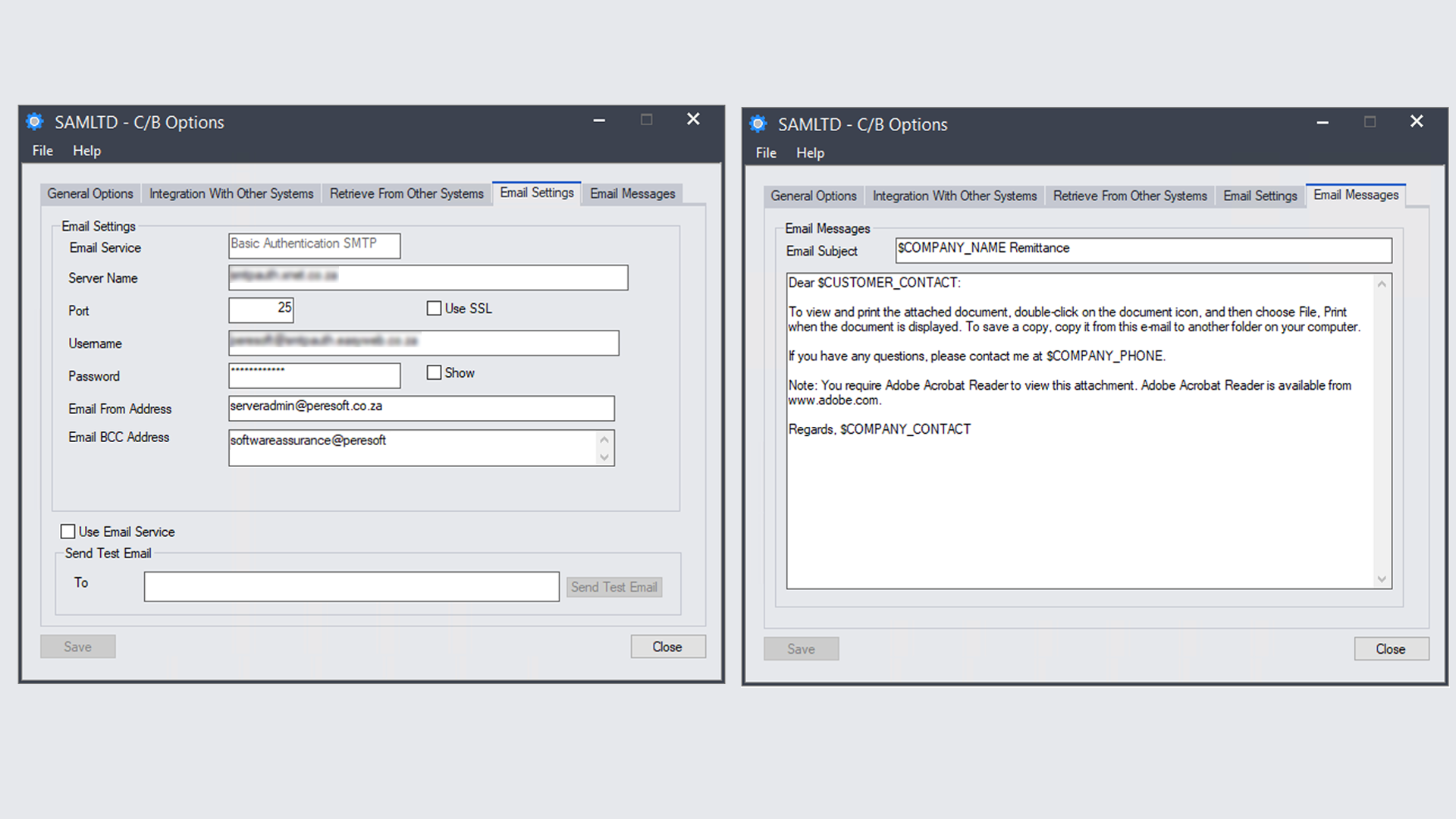
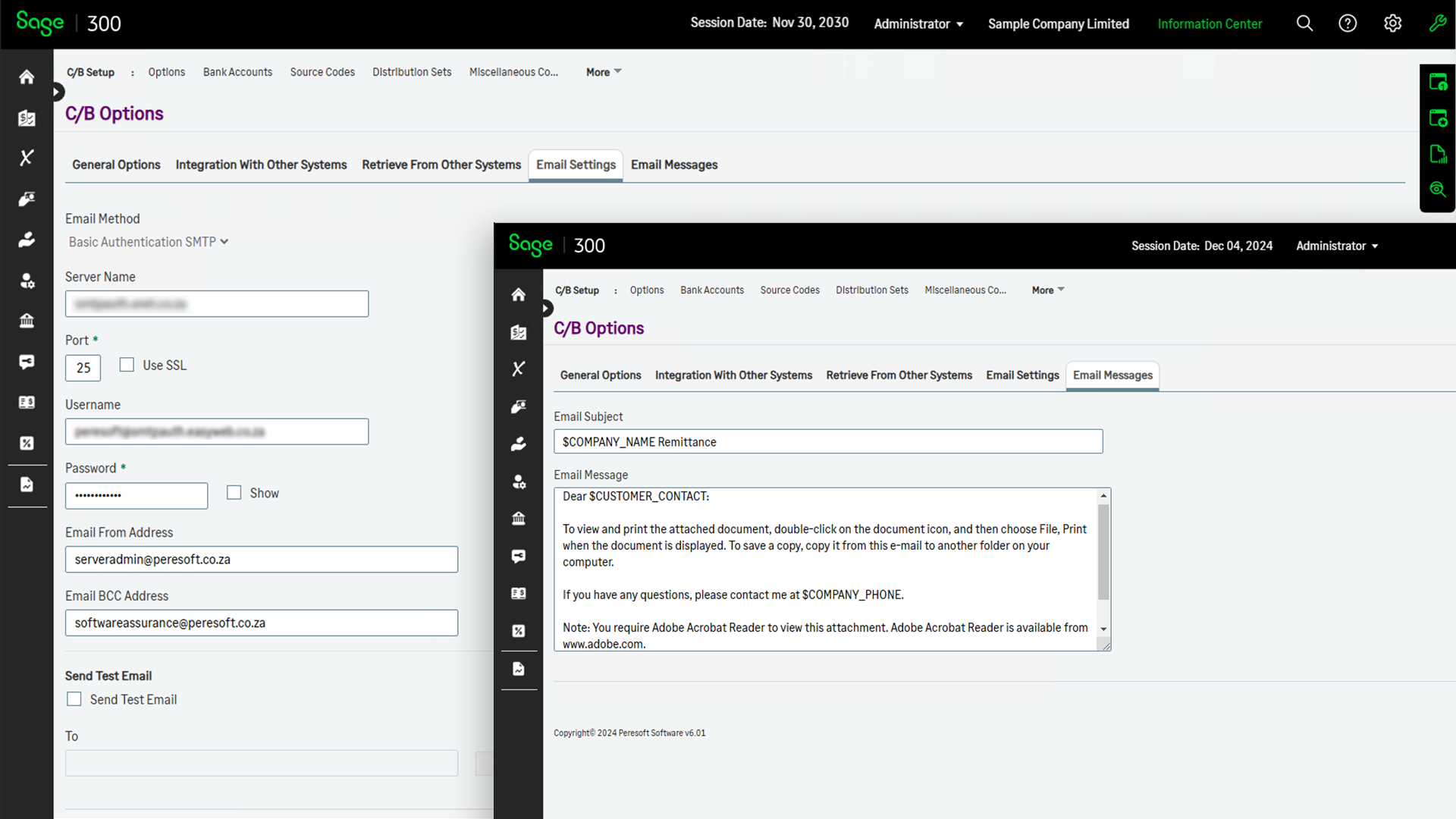
Simplify communication with your vendors by automating the emailing of remittance advices directly from Cashbook. Customize your email messages with Sage tags for a professional and tailored client experience.
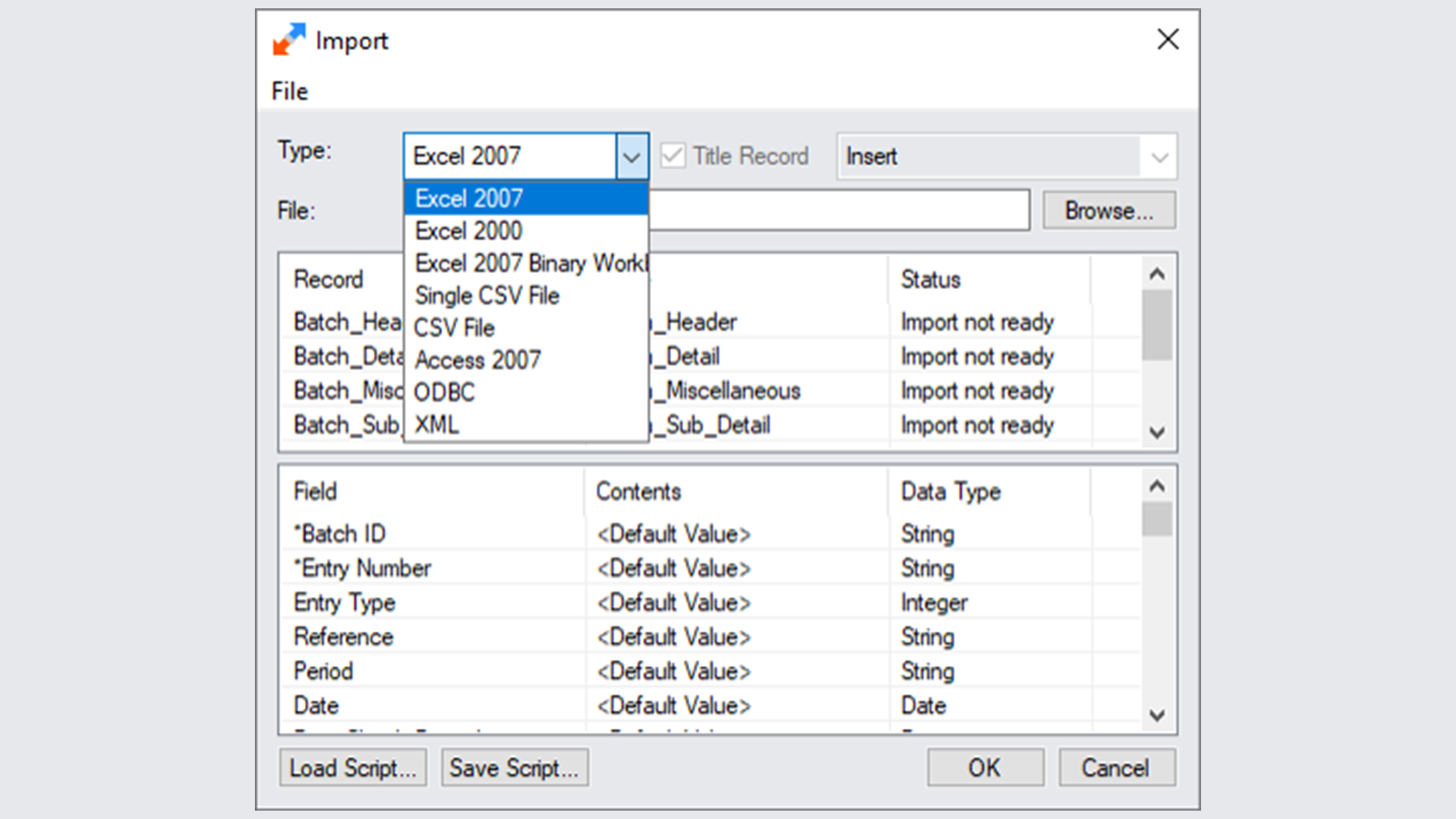
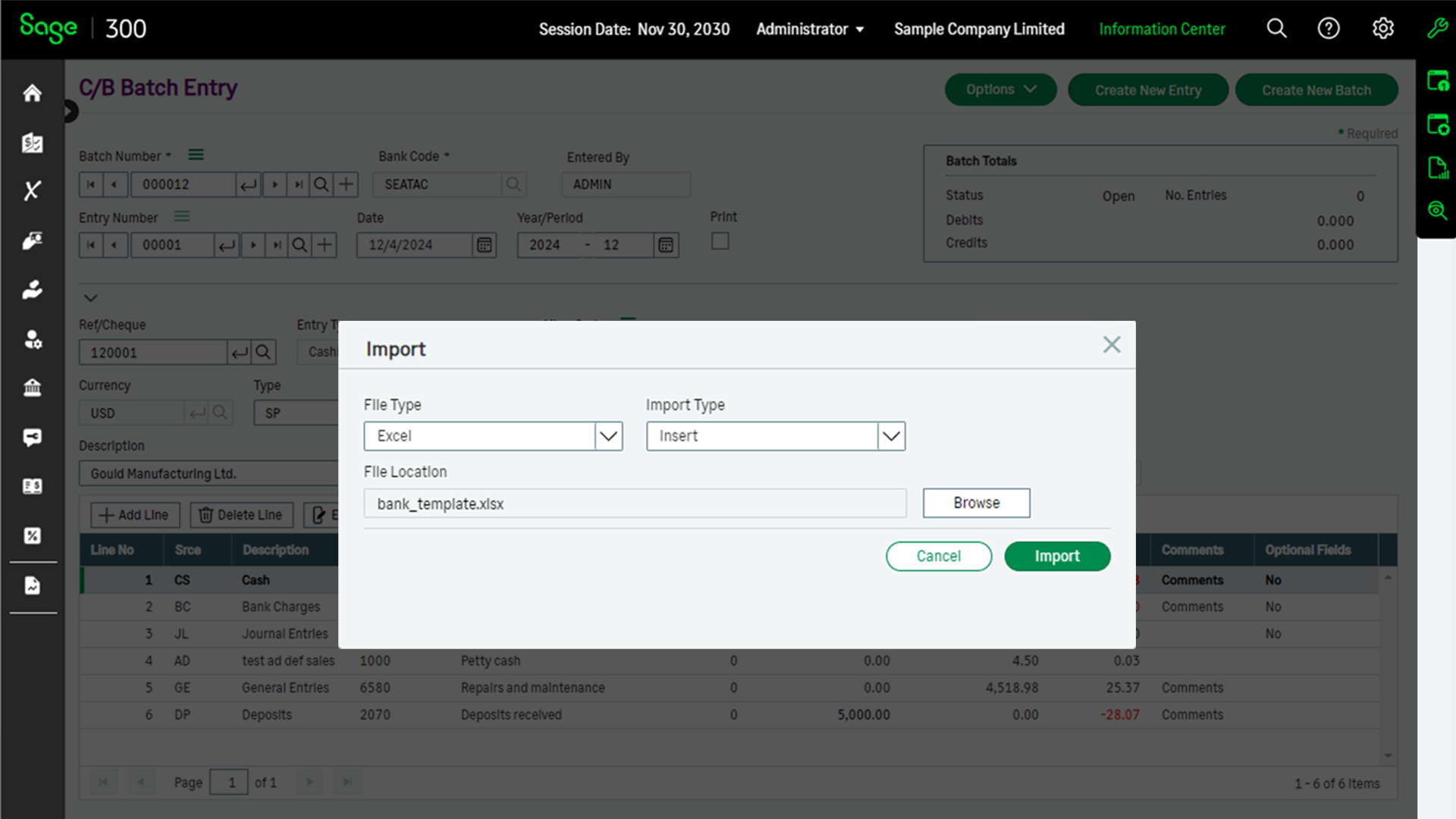
Sage 300 (Accpac) Batch Import/Export functionality and formats.
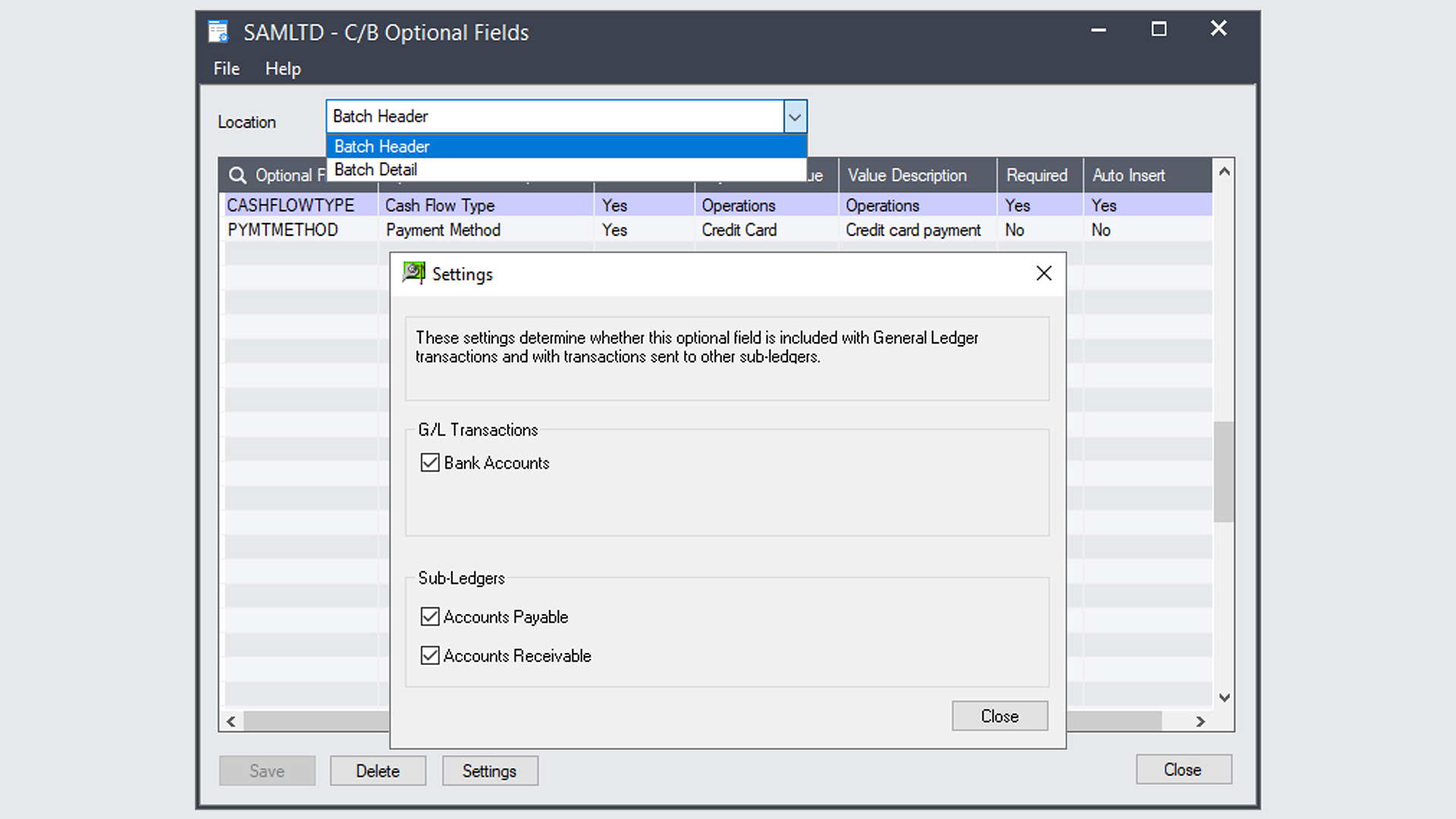
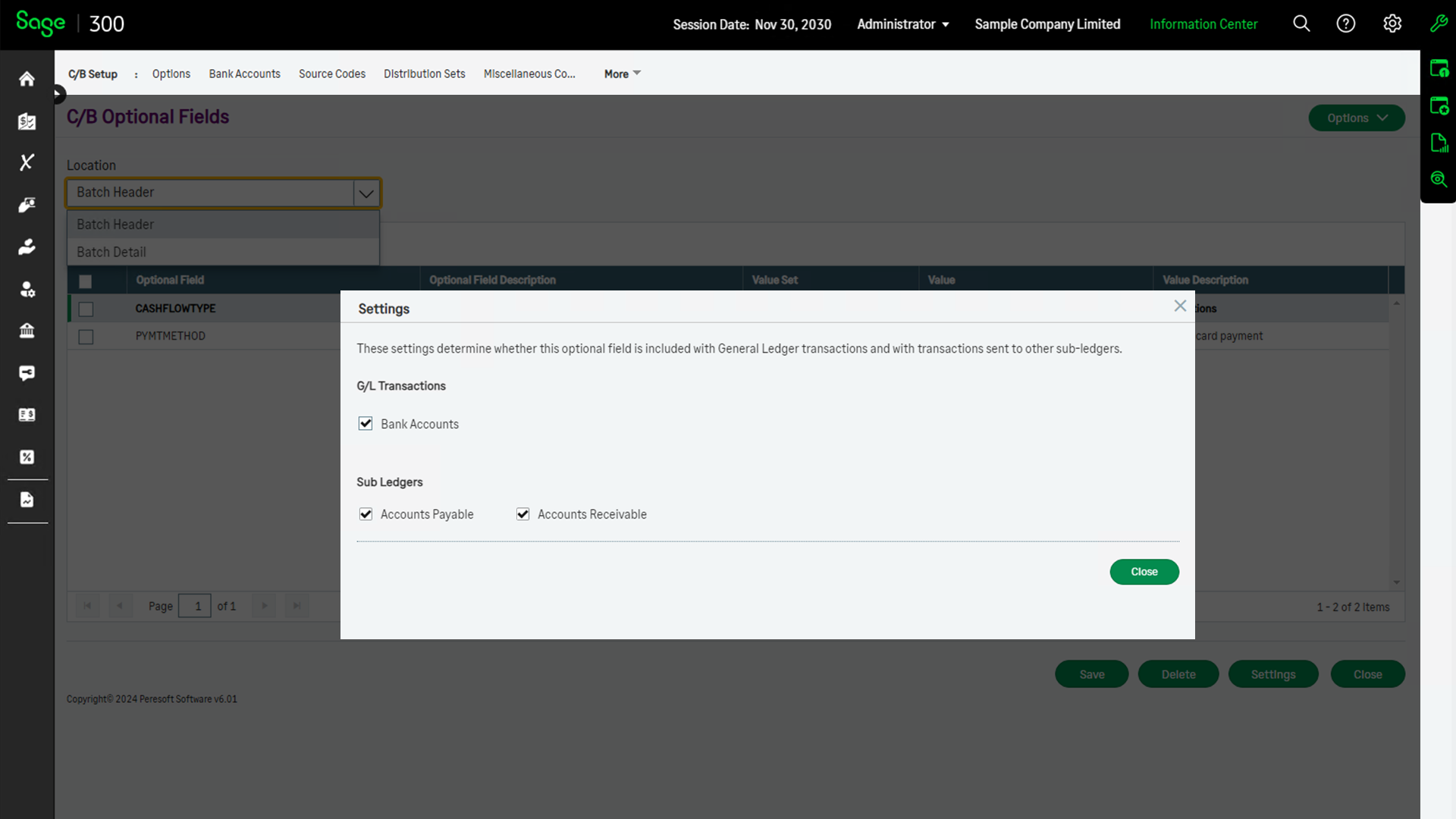
Optional Fields in the Cashbook batch header and detail section which feeds through to the General Ledger bank and distribution accounts, Accounts Payable and Accounts Receivable.
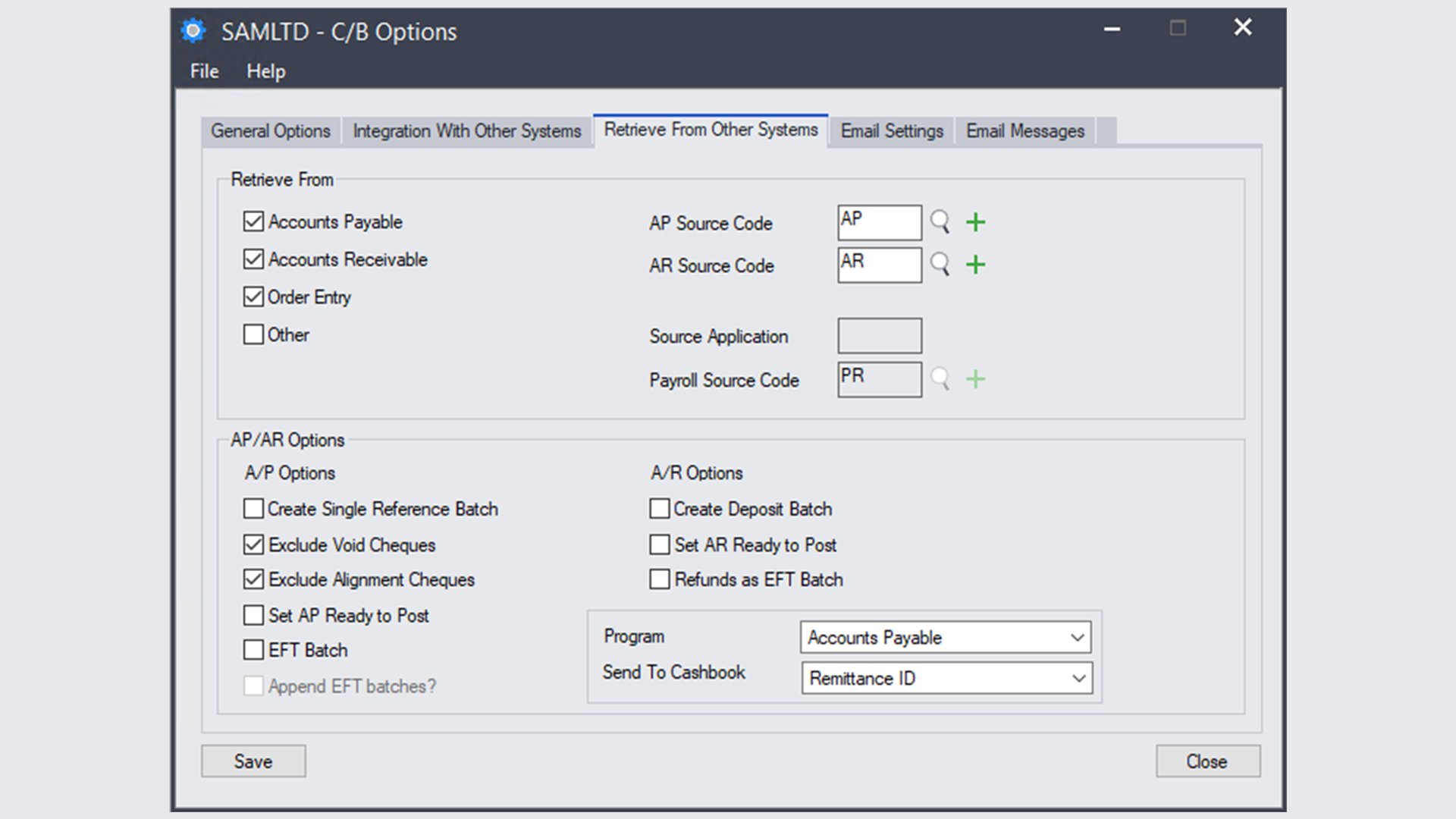
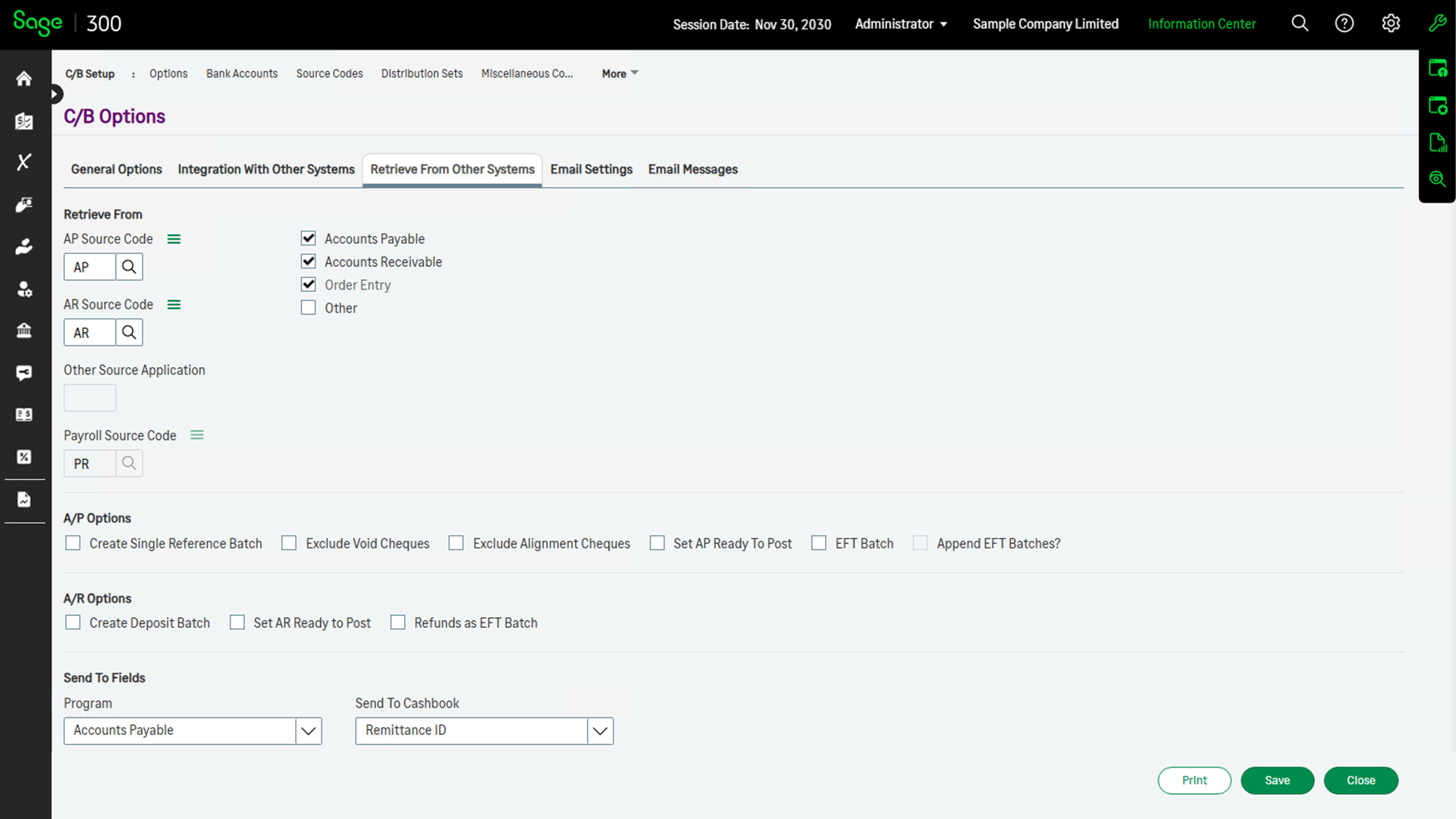
Generate Cashbook batches seamlessly (without any retrieval process) when Accounts Receivable Receipt/Refund and Accounts Payable Payment batches are posted.
Drill Down from General Ledger, Accounts Payable and Accounts Receivable batches to the Cashbook batch from which the entry originates.
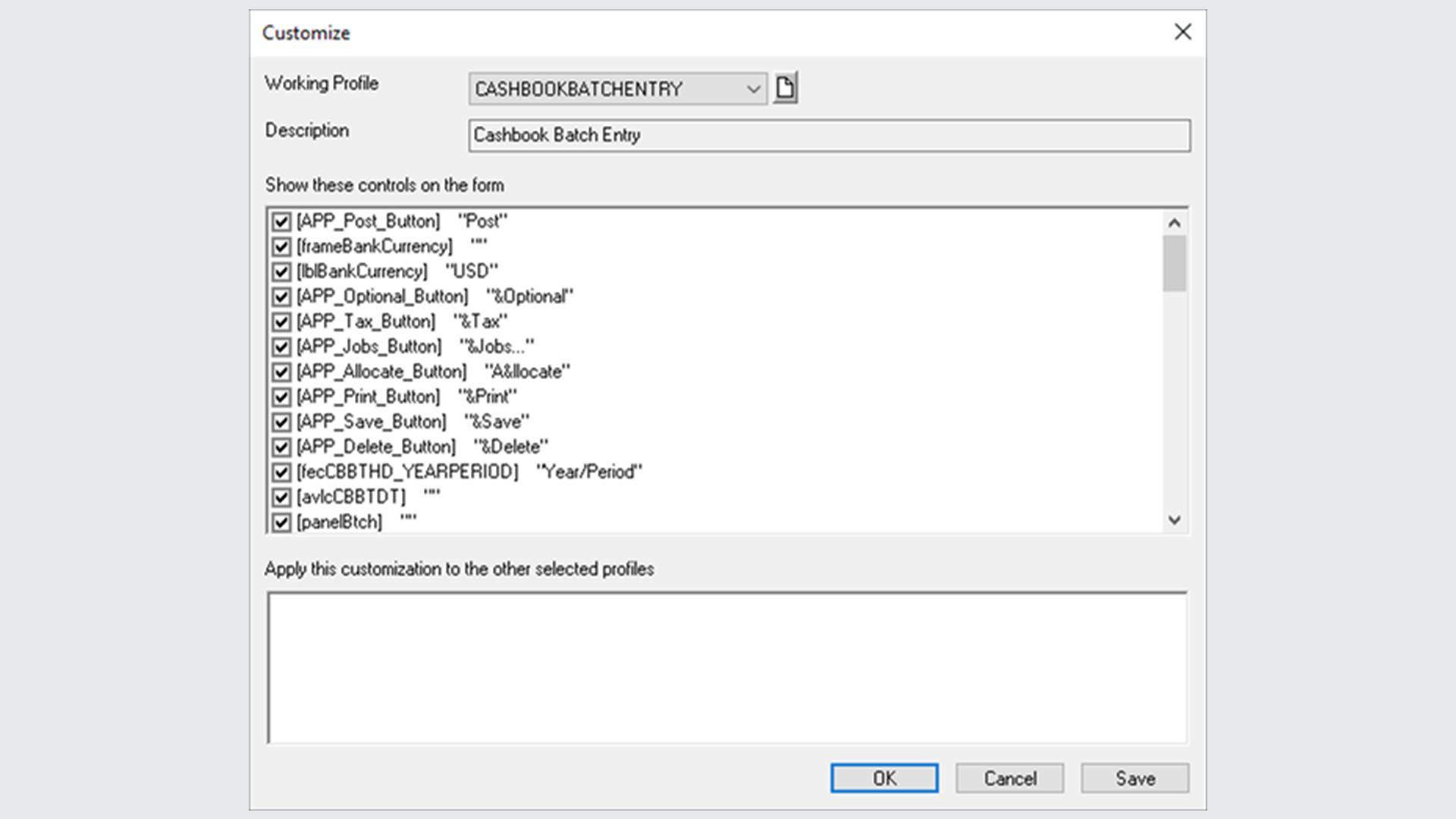
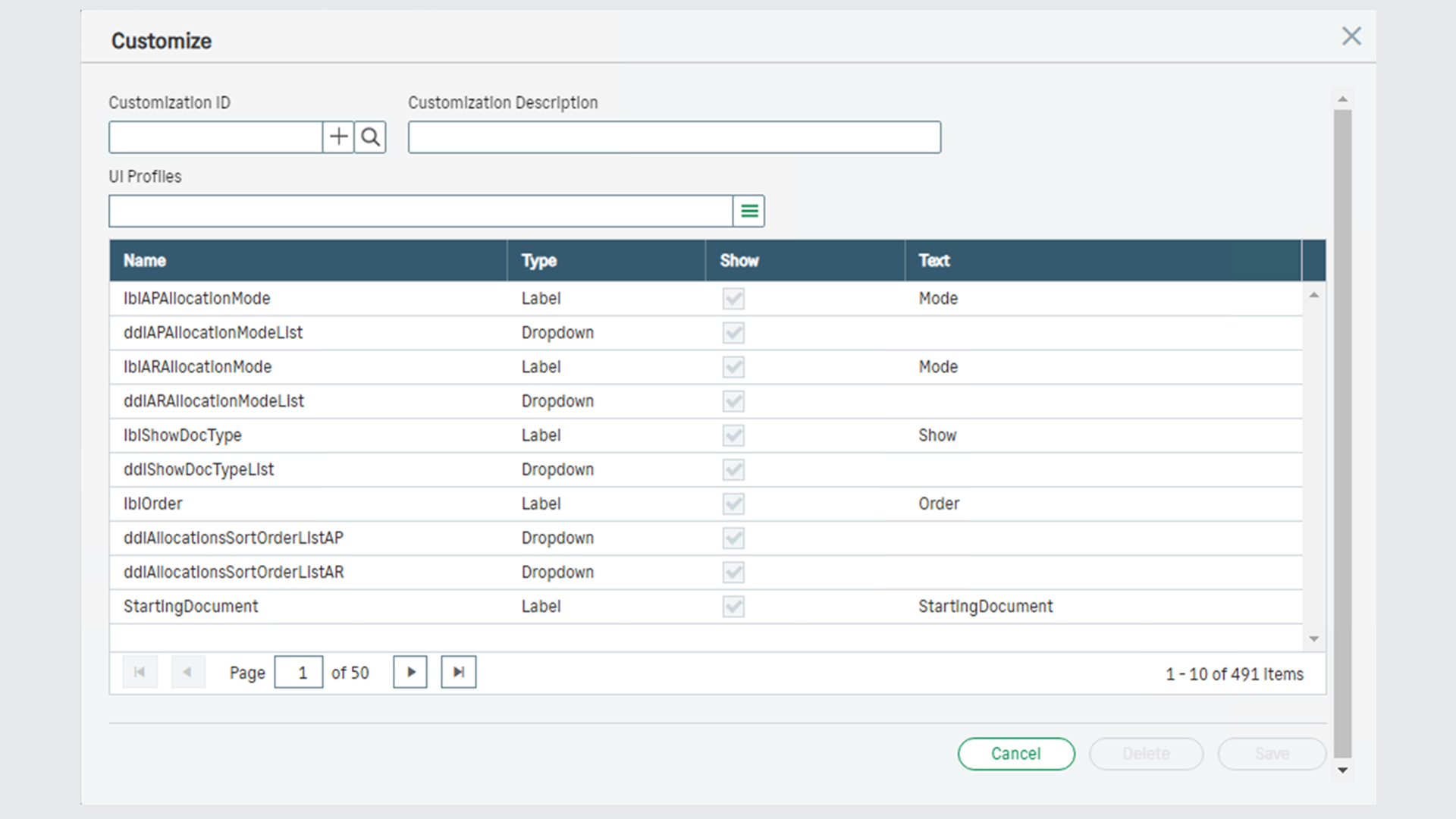
Customize forms, hide fields and/or buttons in forms and dialog boxes for specific users or for all users assigned to a particular UI Profile.
Overview
You will find the operation of Cashbook for Sage 300 (Accpac) simple and practical. More the way you think.
Features like multiple years of history, online cheque and receipt printing, direct bank reconciliation, optional fields, full Tax Services integration, drill down from other Sage 300 (Accpac) modules, unlimited report writing, customization by user and seamless integration to other Sage 300 (Accpac) modules, increases the power of Cashbook making it a product that you will never outgrow.
Powerful lookup tables and search functions let you look up entries in a flash. Finding the history of a transaction is quick and easy. Reconciling your bank statement is the way it should be, visual and flexible. Cashbook uses one of the most popular report writers in the world, Crystal Reports.
Crystal adds many extra features to let you shape Cashbook the way you like it. All Cashbook reports can be modified using Crystal. Draw graphs in most shapes and sizes, do cashflow reporting with ease using Crystal's Report Expert and link Cashbook data with Sage 300 (Accpac).
You will definitely be able to add that final edge that you require from an accounting system.